


Understanding Background Auto Upload on iOS
Learn how iOS automatic backup works in the background and the system limitations you should be aware of. Check out our tips for a smooth backup experience to keep your photos and videos safe with Koofr.
Written by human for humans
With iOS version 26.4, Apple introduced a major software upgrade. Koofr dived right in, introducing the automatic backup of your photos and videos in the background.
However, there are a few settings worth knowing to ensure the process runs smoothly. Below, we'll explain how iOS auto-upload works in the background and the settings required for a seamless backup experience.
This post covers the Koofr mobile app version 4.0.5 and later, running on iOS 26.4 or later.
Why is Background Auto Upload Essential
Auto upload on iOS allows the Koofr mobile app to back up your photos and videos in the background. You can go about your everyday activities, capturing memories along the way, without ever having to worry about backing them up - because Koofr does it for you.
The app does not need to be open in the foreground; you can use your screen for other activities or not at all. Just be sure you don't close the app manually.

Key iOS setting for successful background uploads
Because Apple likes to keep a tight leash on apps running in the background, you need to check a few iOS settings to keep the Koofr background backup running as reliably as possible.
Prerequisite
- Make sure your app and phone are updated to the latest versions: Koofr iOS app version 4.0.5 or later and iOS 26.4 or later.
- Then enable the Auto Camera Upload in the Koofr mobile app settings. For step-by-step guidance, check out How to backup photos and videos from iPhone.
iOS system requirements (adjust them directly in your iPhone’s settings app)
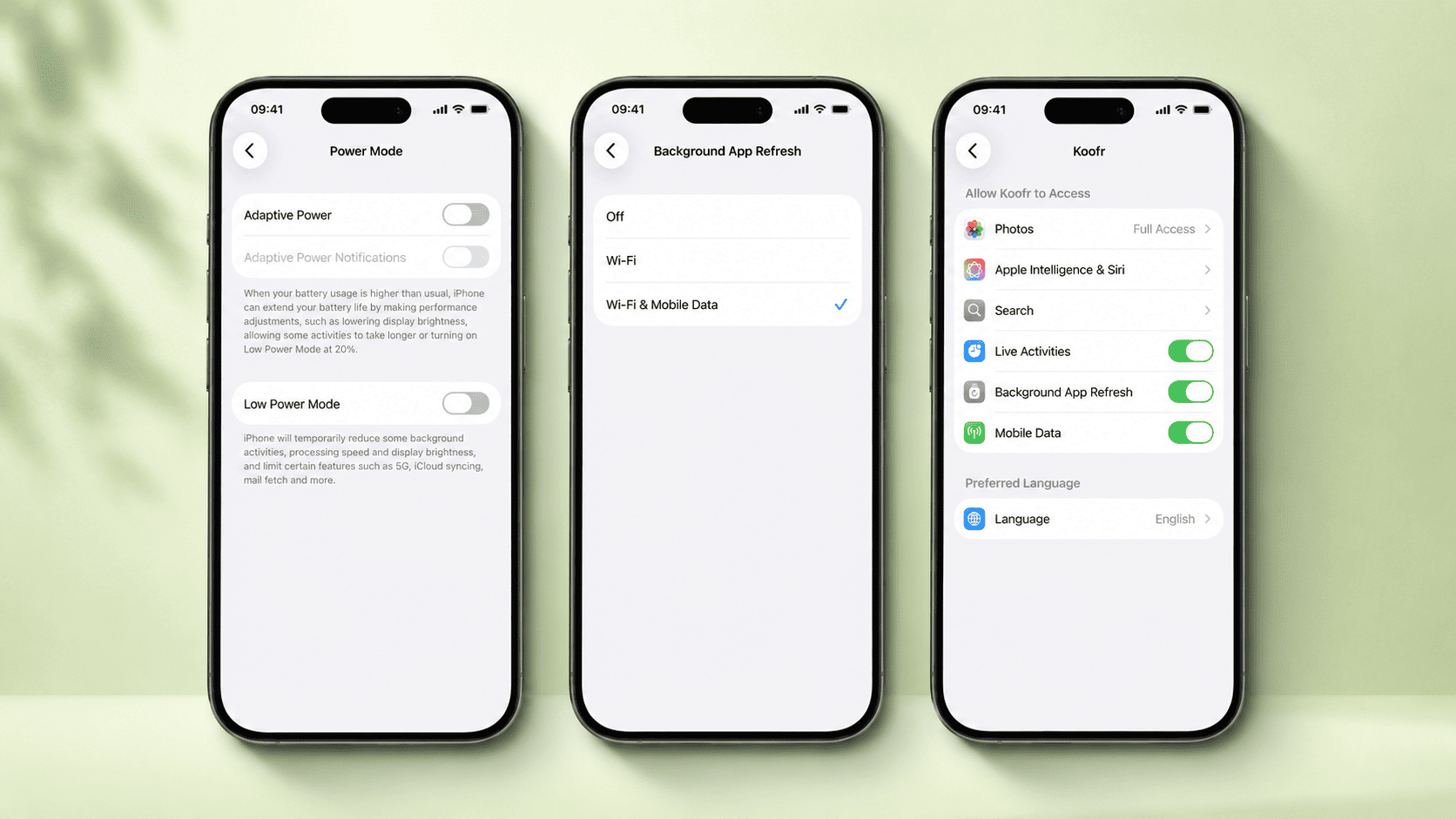
- Turn off Low Power Mode. Apple restricts background activity when your battery is low. Go to Settings > Battery and make sure Low Power Mode is toggled off.
- Enable Background App Refresh. This allows Koofr to work while you use other apps. Go to Settings > General > Background App Refresh and turn it on. If disabled, turn it on and restart your device.
- Grant Full Photo Access. Apple requires full access permissions for background uploads to function. Go to Settings > Privacy & Security > Photos, tap Koofr, and select Full Access.
- Make sure your device is connected to a stable Wi-Fi, or that mobile data is turned on and working properly.
Background uploads are controlled by iOS and can be stopped by the operating system under certain conditions. In some cases, the initial background upload may not start until the device is connected to a stable Wi-Fi network and the battery level is above 80%. However, once the upload process has started, it will normally continue to work regardless of the battery level, provided the other requirements are met. This behaviour is determined by iOS and cannot be overridden by the Koofr app.
Find Your Recently Uploaded Media Files in Koofr
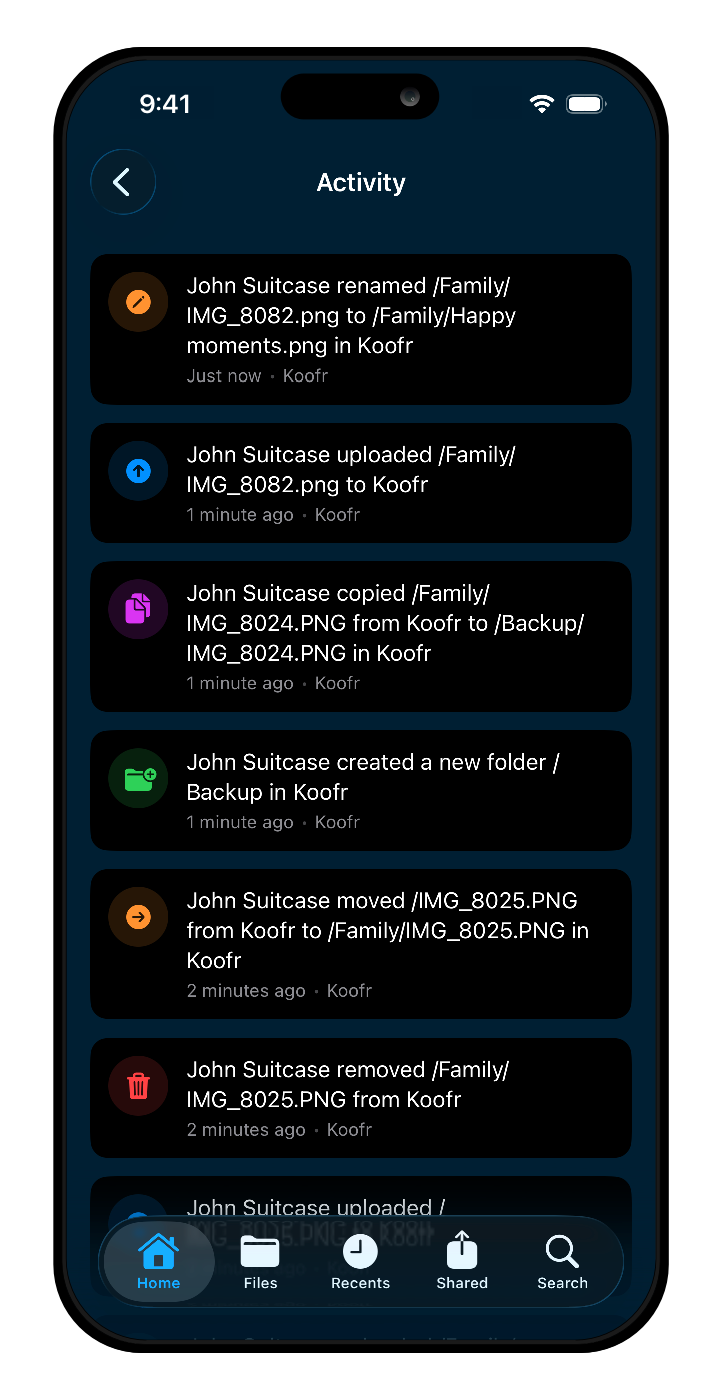
Track the progress of your backup in the Koofr app under the Activity section (Settings > Activity).
If you are using the creation date for uploaded files, keep in mind that newly uploaded photos may not appear in Recents. For example, a photo taken in 2023 and uploaded today will still be displayed under its original 2023 date. This can make it seem as though the file has not been uploaded, even though the upload was successful. To see the latest uploads, always check Activity.
Factors affecting Koofr’s background upload performance
Photo and video backup on iOS runs automatically in the background and depends heavily on how iOS manages background tasks and system resources.
When uploading a large number of files, iOS may temporarily pause or limit background activity to preserve battery life, optimise performance, manage network usage, or prioritize other system processes. As a result, uploads may occasionally slow down, pause, or resume later automatically. This behavior is controlled by iOS.
Since iOS manages how apps operate in the background, understanding a few system requirements will help bring background auto-upload to life. Your photos and videos will be safely backed up to Koofr, where you can access them anytime, from anywhere.
Ready to keep your photos and videos safe? Try Koofr mobile app today and enjoy secure, automatic backups that keep your memories protected and accessible wherever you are.
Stay safe. Backup your data with Koofr.
Join the Koofr community on Reddit to stay up to date with new features, tips, and discussions.