


Guide to the Koofr iOS App for Beginners
New to Koofr on iPhone? This beginner's guide walks you through downloading the app, setting up automatic photo backup, navigating the interface, managing your files and folders, and customising your settings - everything you need to get started in one place.
Written by human for humans
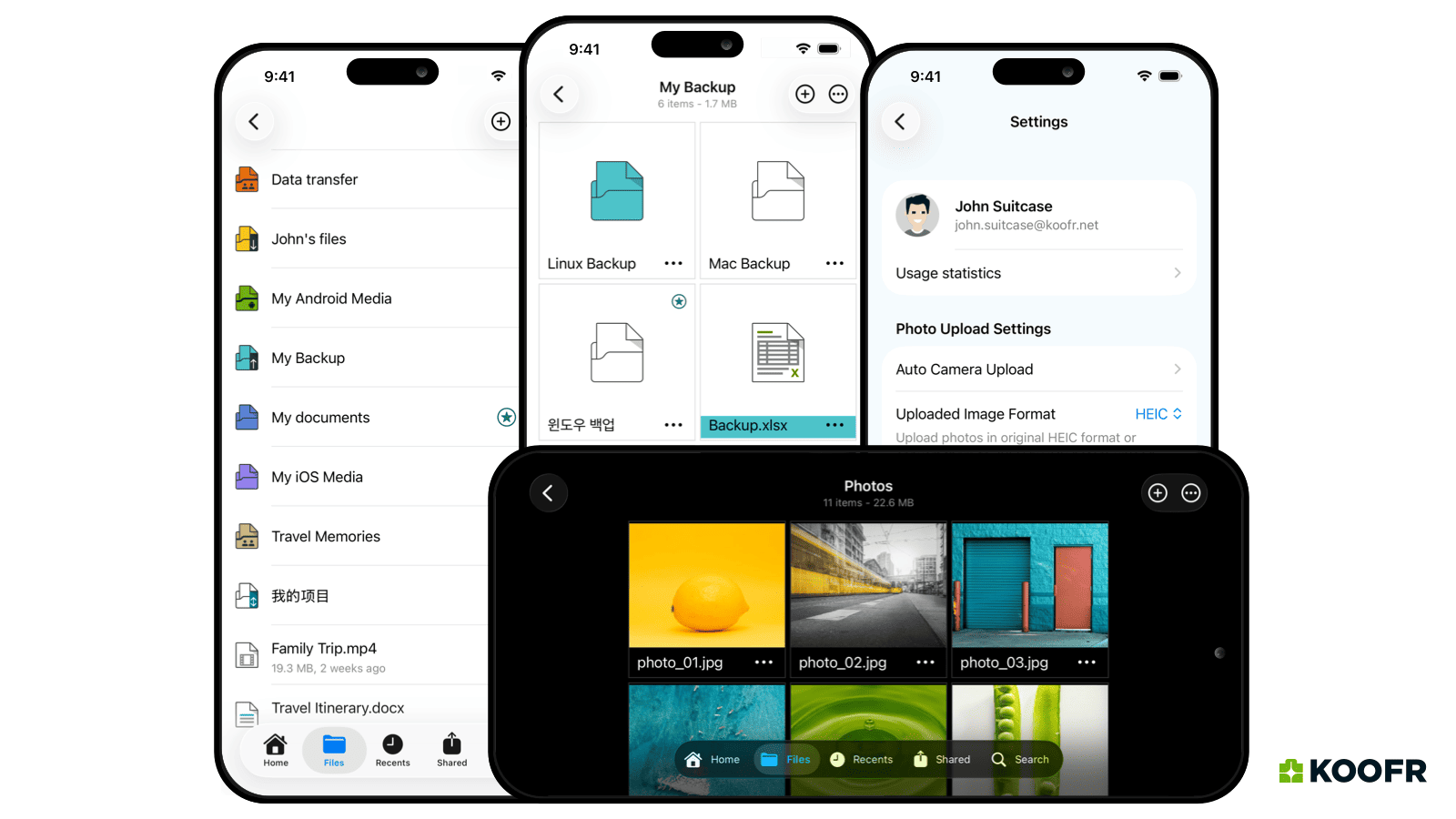
Koofr iOS app is designed to take the hassle out of file management wherever you are. Whether you're completely new to cloud storage or simply looking for a smarter way to organise your daily digital life, the app does much of the heavy lifting for you, from automatic photo backups to seamless file access across devices.
Koofr for iOS. Access anywhere, anytime.
In this beginner's guide, we'll walk you through everything you need to know to get started with the Koofr iOS app — from downloading and first setup, to navigating the interface, managing your files, and fine-tuning your settings for the best experience.
Getting Started: Download and First Login
The first step is straightforward. Head to the Koofr page on App Store and tap Get to download it. If you already have an older version of the app installed, simply tap Update to get the latest version.
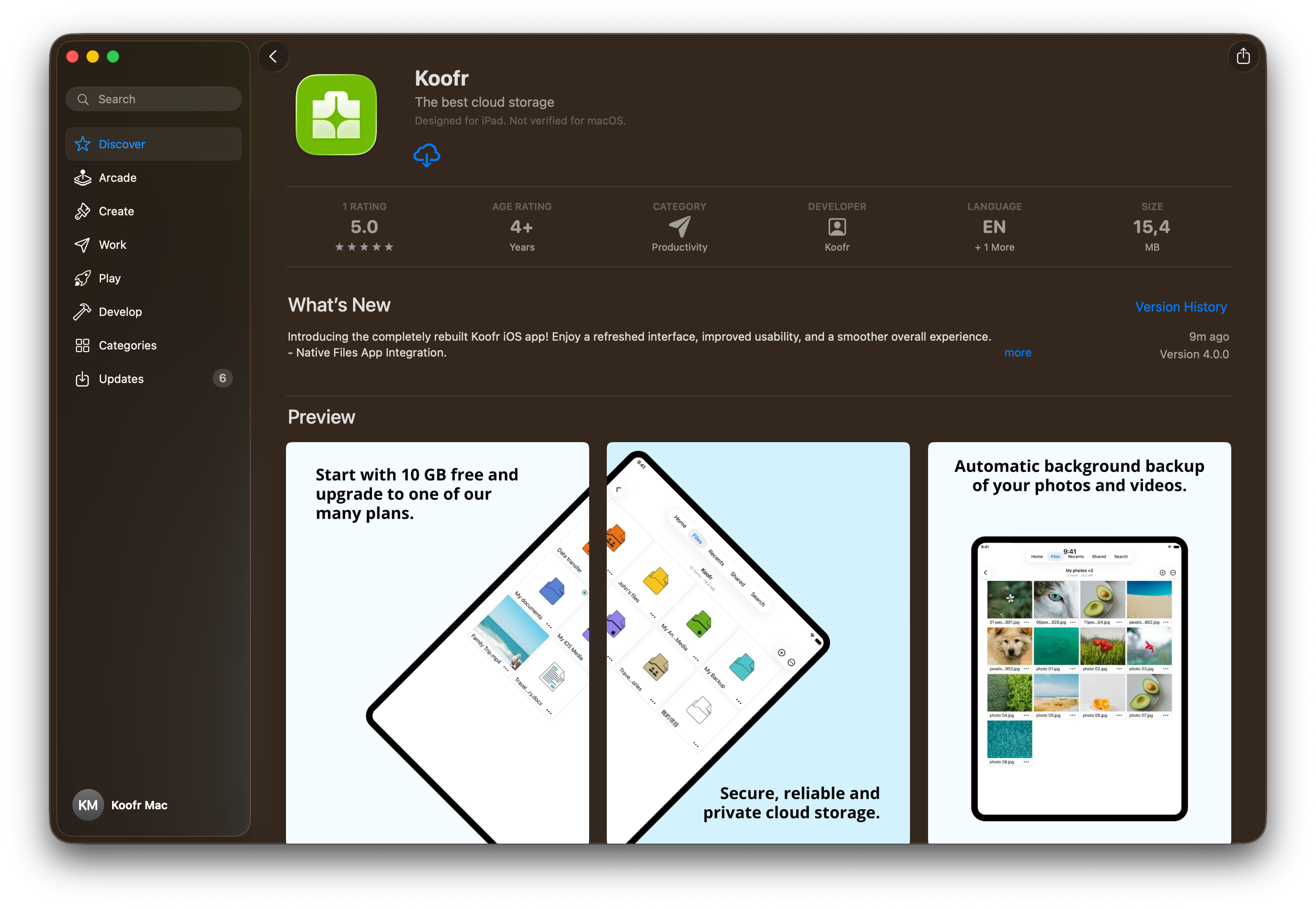
Once installed, open the Koofr app and sign in with your existing Koofr credentials, or create a new account if you're just getting started.
Light mode or dark mode?
The Koofr iOS app follows your system preferences. Simply toggle between light and dark mode in your iPhone's Settings > Display & Brightness, and the app will adjust automatically.
Read more: New Feature: Koofr Dark Mode
Setting Up Auto Backup on First Launch
One of the first things you'll be asked when you install the app is whether you'd like to enable automatic photo and video backup. This is one of the most useful features the app offers, and we highly recommend setting it up straight away.
You have two options:
- Back up only new media — Koofr will upload photos and videos taken on your device from this point forward.
- Back up existing media — Koofr will scan your entire photo library and upload everything.
Note: depending on the size of your library, the initial scan of your media files may take some time.
Once auto backup is enabled, you can customise it further:
- Target folder: By default, your photos are saved to a folder called My iOS Media in your Koofr account. You can change this to any folder you prefer by taping on Change media folder.
- Split media by year: Enable this option to have your photos automatically sorted into subfolders by the year they were taken — a great way to keep years of memories neatly organised.
- Preserve creation date: Choose whether to use the date the files were taken or the date they were uploaded for new photos and videos.
- Live Photos: You can set whether Live Photos are uploaded. If disabled, only the still image will be uploaded.
Important note: While iOS 26.4 or later supports media background upload, the timing of uploads is ultimately managed by iOS itself — based on your network connection, battery level, and overall system activity. The interval between uploads can range from a few minutes to a few hours. For large initial backups, we recommend keeping the Koofr app open, plugging your phone in, and connecting to Wi-Fi overnight.
The Koofr iOS App Interface
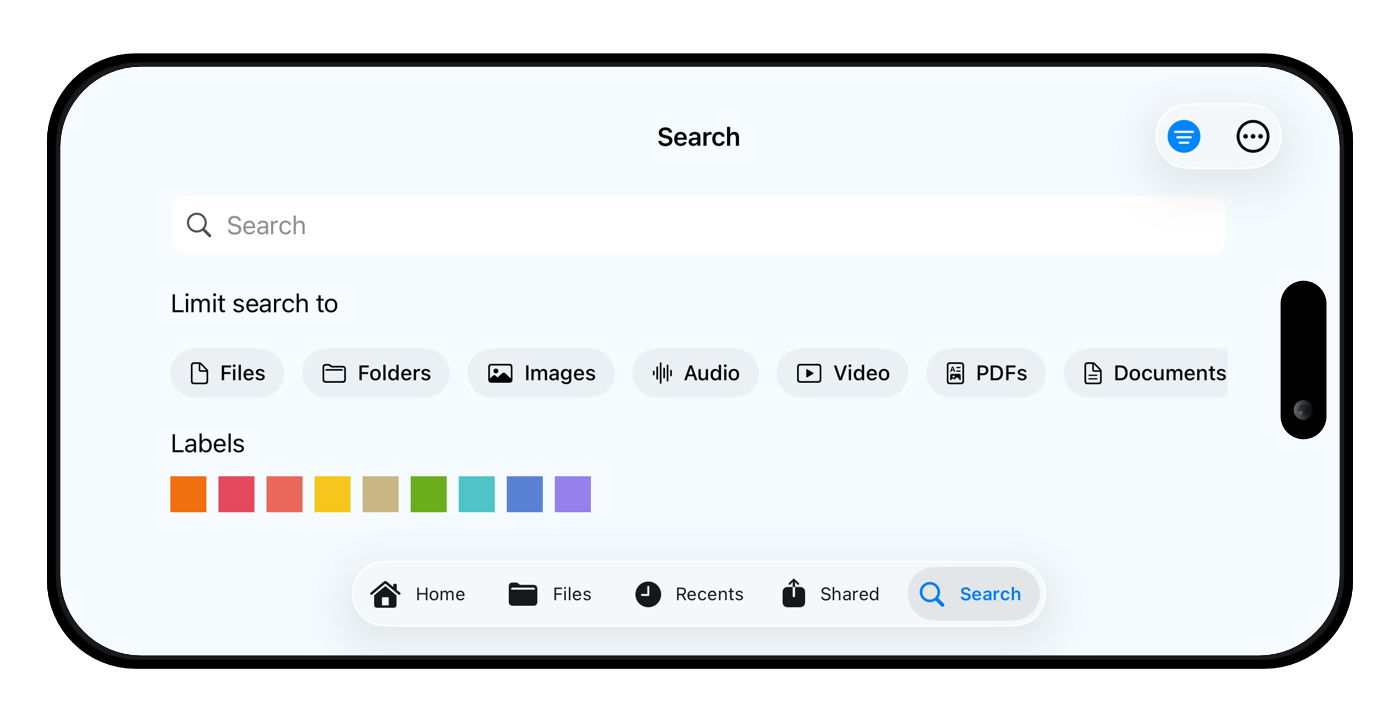
The Koofr app is designed to be clean and intuitive — you won't need a manual to find your way around. At the bottom of the screen (or at the top on iPads), you'll find the main navigation menu with five key sections:
- Home — Your starting point. Tap this at any time to return to the main dashboard.
- Files — Browse and manage all your files and folders stored in Koofr.
- Recents — Quickly access the files you've most recently uploaded, opened or modified.
- Shared — View folders and files privatly shared with others via Add people, as well as those others have shared with you.
- Search — A powerful search tool with advanced filtering options, matching the search capabilities available on the Koofr web app.
The Home Button: Your Dashboard
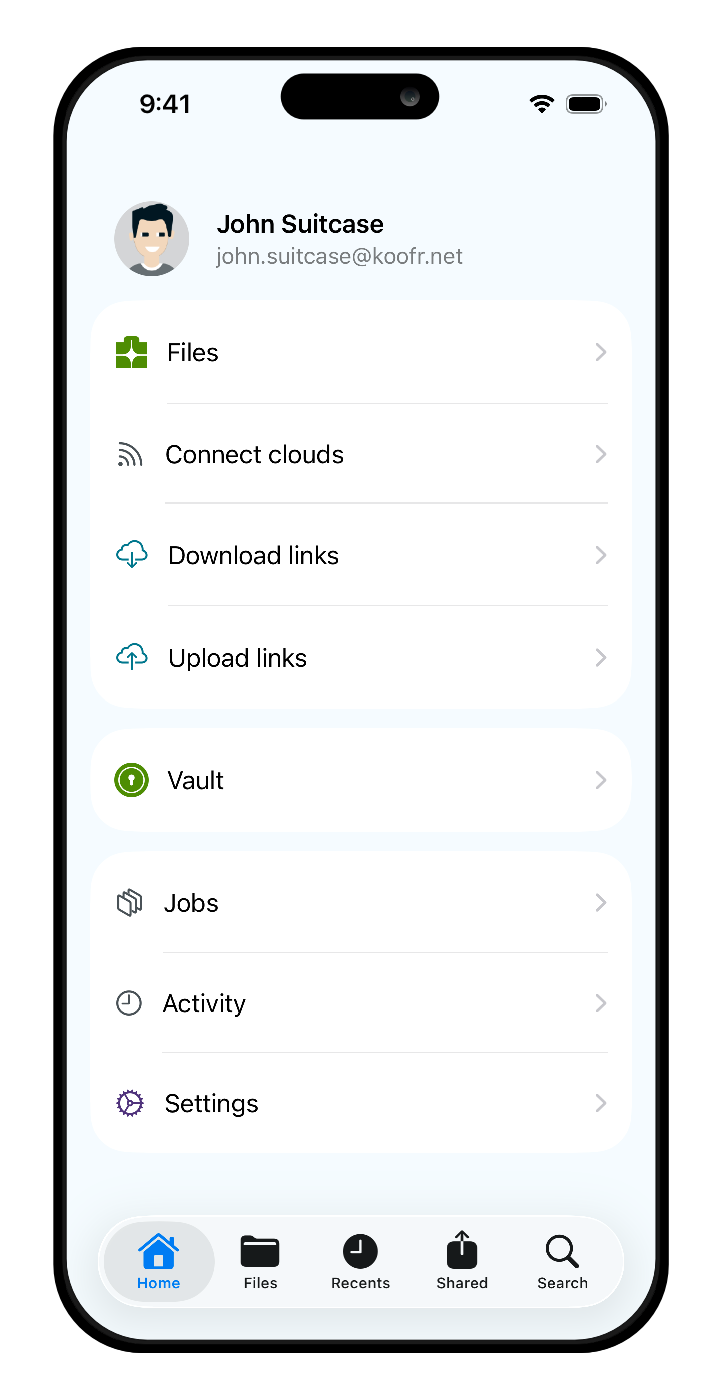
The Home section is the heart of the Koofr app. From here, you can access everything in one place:
- Files — Tap to see all your Koofr storage, including bookmarked folders, your Koofr files, and any connected cloud accounts (Google Drive, OneDrive, Dropbox). You can also access your Deleted files here; permanently delete them or restore them if needed.
- Connected cloud storage — Link your existing Google Drive, OneDrive, or Dropbox accounts directly to Koofr and manage everything from Koofr.
- Links — View all your active sharing links and receiving links.
- Koofr Vault — Tap to open the Koofr Vault app, Koofr's zero-knowledge encrypted storage add-on for your most sensitive files.
- Jobs — When you copy, move, or delete a large number of files at once, Koofr creates a Job that runs in the background so you can keep using the app uninterrupted. Finished jobs are automatically removed from the list after two days.
- Activity — A log of recent activity in your account, so you can always keep track of what's been changed or uploaded.
- Settings — Access your account and app preferences (more on this in the paragraphs below).
Tip: The Koofr iOS app integrates with your iPhone's native Files app. Once enabled, you can open, edit, save, and organise your Koofr files directly from the Files app as if they were stored locally on your device.
Koofr iOS app: Managing Files and Folders
To browse your Koofr storage, go to Files. From here, you have full overview over your files and folders.
Changing the view and sorting: Tap the three-dot icon in the top-right corner to switch between List view and Tiles view, and to sort your files. Folders can be sorted by name.
Creating folders and uploading files: Tap the (+) icon in the top-right corner to:
- Create a new folder
- Upload photos from your camera roll
- Upload any file from your device
File and folder actions: Press and hold any file or folder for a moment to bring up a drop-down menu with the following options:
- Download — Save the file directly to your device.
- Rename — Give the file or folder a new name.
- Move or Copy — Organise files across your Koofr storage.
- Share — Choose from three sharing options:
- Add people — Invite specific people to access a shared folder.
- Send link — Create a public or password-protected link to share the wanted file.
- Receive files — Set up a folder where others can upload files directly, without seeing the rest of your storage.
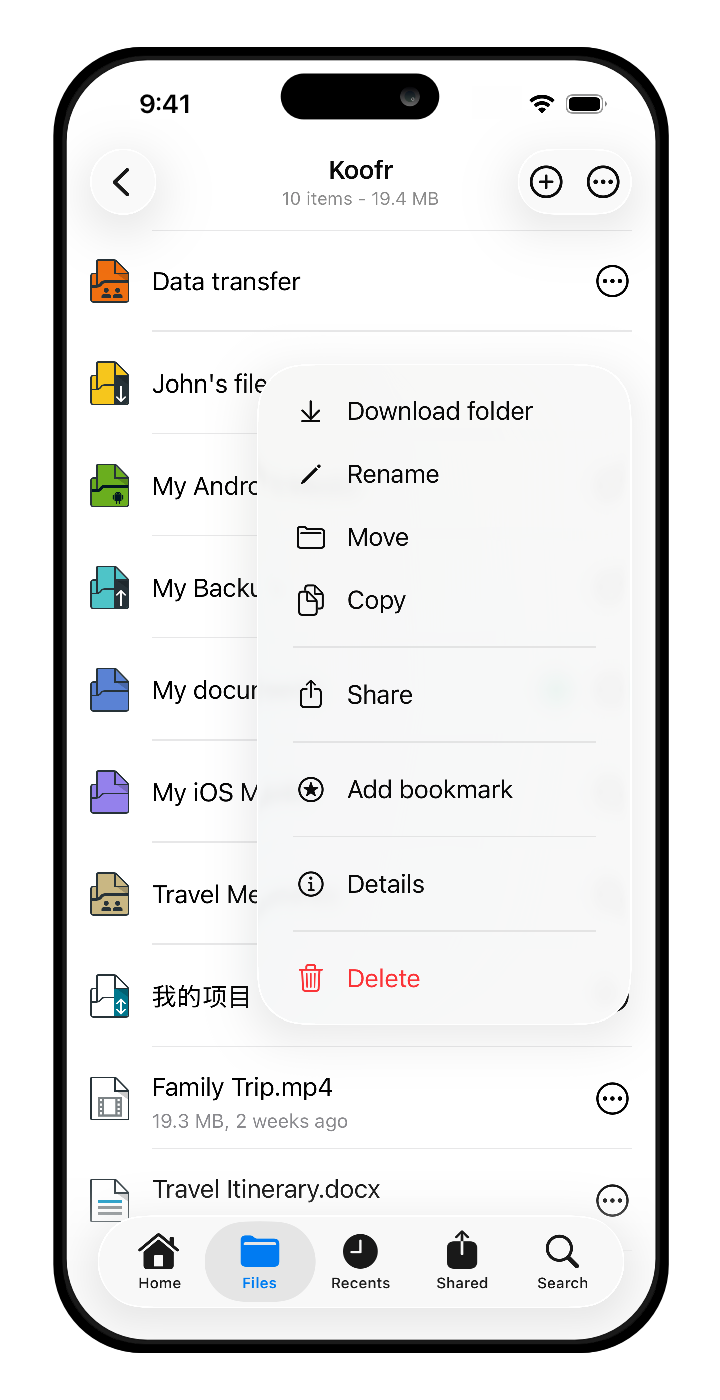
- Bookmark — Pin frequently used folders to the top of your Files view for quick access.
- Details — View file information such as size, creation date, and last modified date.
- Delete — Remove the file or folder from your Koofr account.
Read more: Overview of Sharing Options in Koofr
Settings: Tailoring the Koofr iOS App to Your Needs
The Settings section gives you a clear overview of your account and lets you fine-tune how the app behaves. Here's what you'll find:
- Usage statistics — See at a glance how much storage you've used in your Koofr account and in any connected cloud services (Google Drive, OneDrive, Dropbox).
- Media Upload Settings
- Configure or adjust your automatic photo and video upload preferences at any time (as described in the Getting Started section above)
- Uploaded Image Format: Choose between HEIC (the native iPhone format, which takes up less storage space) or JPEG (which is more universally compatible).
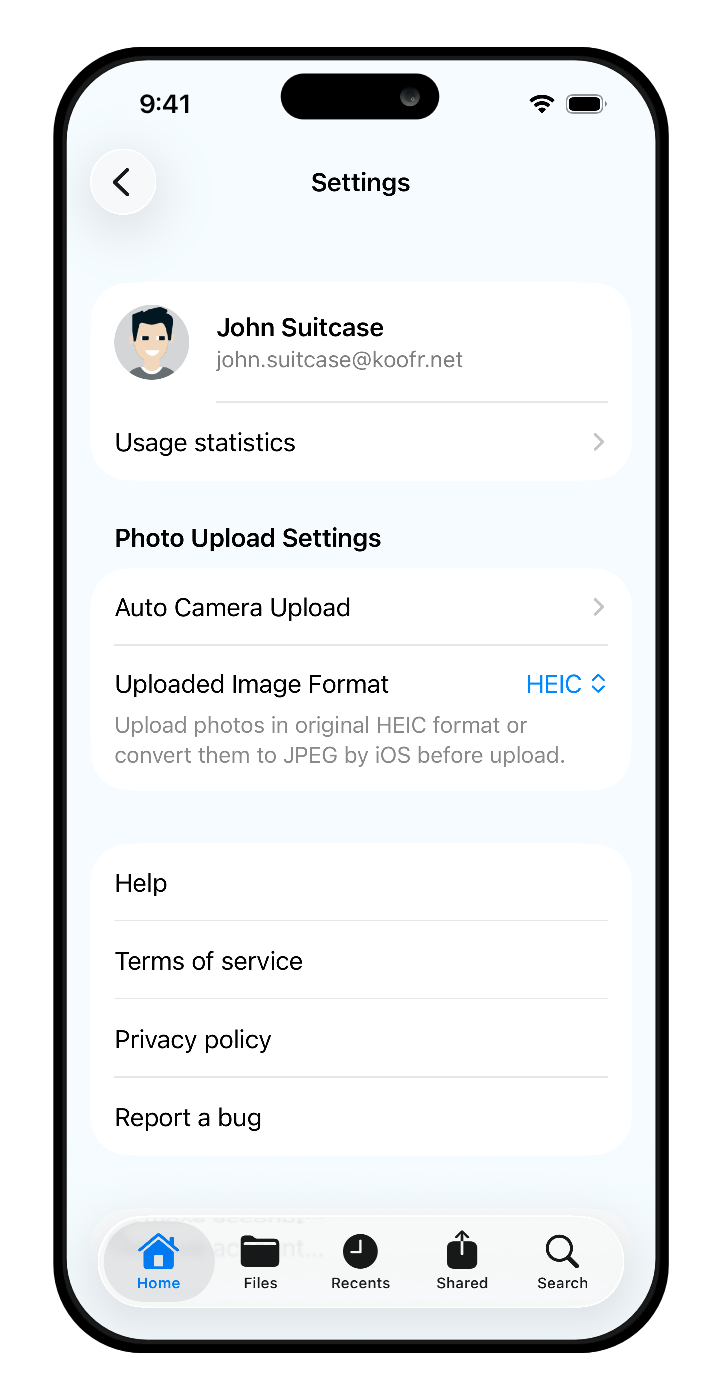
- Help, Terms of Service, and Privacy Policy — Access Koofr's support documentation, terms of service and privacy policy directly from the app.
- Report a bug — Found something that doesn't look right? You can submit a bug report straight from Settings.
- Language — Easily change the app's display language in just a few taps. Note: Since the app has recently been redesigned, it's currently available only in English and Slovenian. Users are warmly invited to help translate the app into other languages.
Tip: If you ever want to upgrade your storage plan, note that due to Apple's guidelines, upgrades cannot be purchased directly inside the iOS app. Simply log in to the Koofr web app and upgrade from there.
Conclusion: Your Files, Always Organised and Safe
With the Koofr iOS app, you have a clean, intuitive tool that automatically backs up your photos, keeping your files organised and giving you quick access to everything you need, wherever you are.
There's no steep learning curve here. The app is built to slot naturally into your daily iOS routine, whether you're a first-time cloud storage user or someone looking for a more reliable, privacy-focused alternative to what you're currently using.
Koofr for iOS. Safe, simple, built for your iPhone.
Two things to do right now:
1. Head to the App Store
and download or update the Koofr app.
2. Turn on automatic media file backups — it takes less than a minute to set up and will save you from a lot of future headaches.
Want to talk to us? Join our growing Reddit community!