


Koofr hidden tips and tricks: Part 2
Are you ready for six more Koofr tips and tricks? These overlooked features can make everyday work in Koofr faster and easier.
Written by human for humans
If you are joining us here, catch up on Koofr hidden tips and tricks: Part 1
Now we are going a step further. These next six Koofr tips and tricks cover:
- keyboard navigation,
- instant sharing,
- how to calculate folder sizes,
- smarter ways to find, measure and present your files.
Koofr. Where your files are organised.

7. Work faster with keyboard shortcuts
If you’re organising a large folder, keyboard shortcuts can save you a lot of clicking. Here are a few useful keyboard shortcuts to try in your Koofr account:
| Task | Windows and Linux | macOS |
|---|---|---|
| Open the selected file or folder | Enter or Alt + Down arrow |
Enter or Command + Down arrow |
| Open the parent folder | Alt + Up arrow |
Command + Up arrow |
| Select everything | Ctrl + A |
Command + A |
| Create a new folder | Shift + N |
Shift + N |
| Rename the selected item | F2 |
F2 |
| Download the selection | Shift + D |
Shift + D |
| Copy and paste | Ctrl + C, then press Ctrl + V |
Command + C, then press Command + V |
The arrow keys move the selection up and down. In Tile view, the left and right arrows also move between items. Hold Shift while using an arrow key to extend or reduce a multiple selection, and press Esc to clear it.
Note: The first time you copy, cut or paste, your browser may ask for permission to access the system clipboard. These clipboard shortcuts work between tabs and windows in the same browser, but not between different browsers.
Check the complete Koofr keyboard shortcuts guide for the rest.
8. Create a public link with one drag-and-drop action
With Quick Sharing, you can upload a file and create a sharing link in a single drag-and-drop action.
In the Koofr web app:
- Drag a file from your computer into the Koofr window.
- Wait for the Quick sharing icon to appear in the Main toolbar.
- Drop the file onto that icon.
- Use the public link.
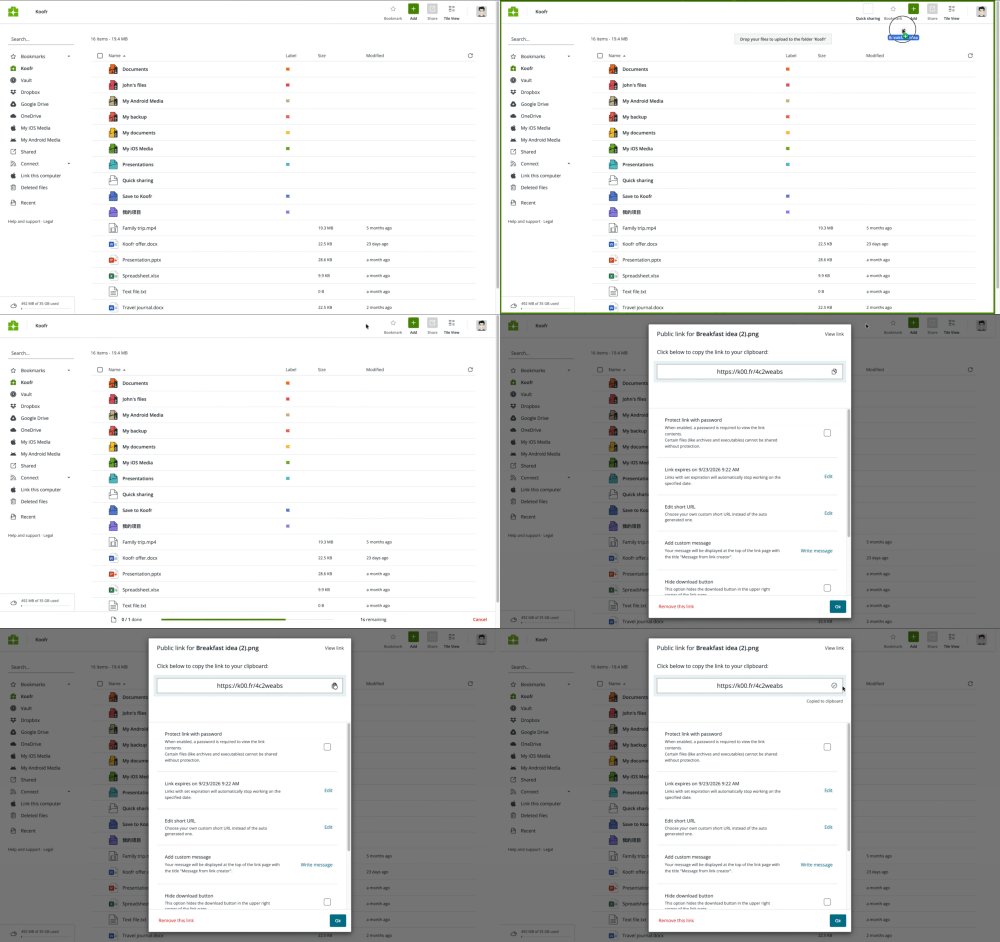
Koofr uploads the file to a folder named Quick Sharing in your account and immediately creates a public link. The link uses Koofr’s Send Link sharing option, so it is ideal for quickly sending a presentation, photograph or any kind of file without working through the usual upload-and-share sequence.
As with any public link, send it only to the intended people and manage it when it is no longer needed. Read about How to easily manage public links with Koofr.
9. Open the Koofr Vault landing page while signed in
Koofr Vault is a separate, open-source, client-side encrypted part of Koofr for files that need additional protection. Its landing page explains how Vault works, including the role of the Safe Key and on-device encryption. You can also return to it after you’ve set up your Vault.
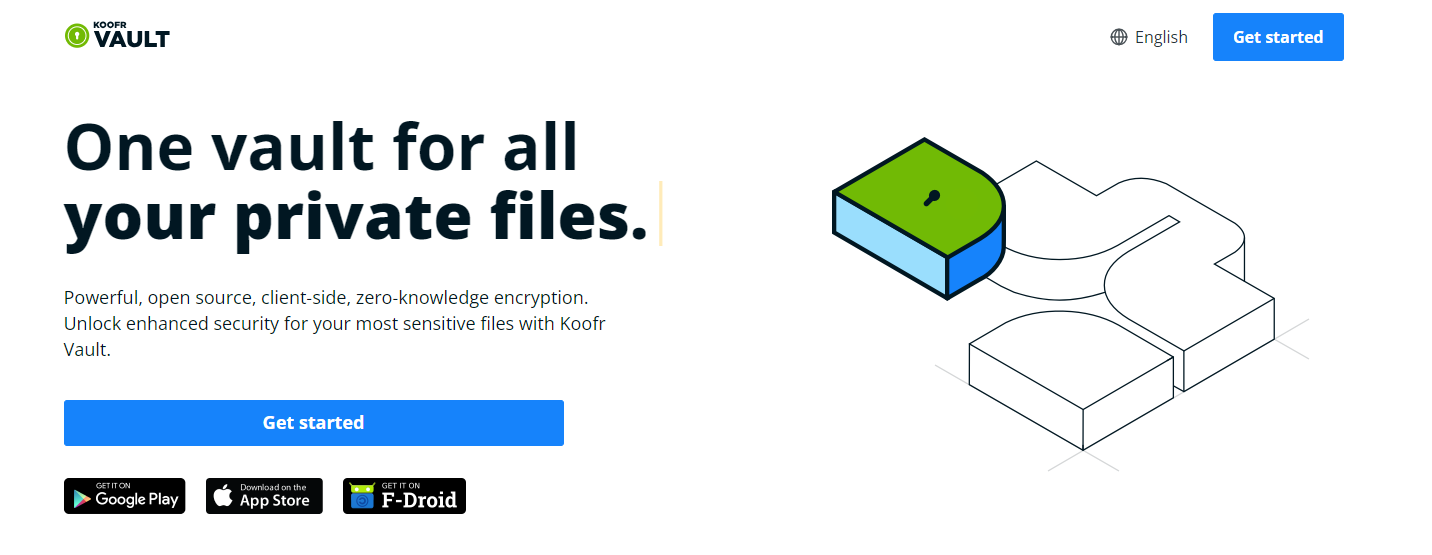
If you are already signed in to the Koofr Vault web app, look at the bottom of the left-hand navigation and select Landing page to open it. This is useful if you want to revisit how Vault works.
Read the beginner’s guide to Koofr Vault for a complete introduction to Koofr Vault.
10. How to view the recently uploaded and shared files
The Recent section in the Main menu on the left side of the Koofr web app gives you quick access to your recently uploaded files as well as files that were recently shared with you.
For a complete overview of items shared between you and other Koofr users, open Shared. Here you’ll find files and folders others have shared with you and those you’ve shared with them. Purple icons indicate items shared with you, while blue icons indicate items you’ve shared with others.
11. Calculate folder sizes with the Space Usage Tool
Individual files have a fixed size, but a folder’s total size depends on everything stored inside it, including its subfolders. That is why the normal file list does not show a simple folder-size value in the same way it does for a file.
To calculate it, use the Space Usage Tool:
- Open the Account Menu from your profile picture in the top-right corner of the Koofr web app.
- Select Extra Tools.
- Open the Space Usage Tool.
- Sort the analysis by Size to find the largest folders, or by Files to find those containing the most items.
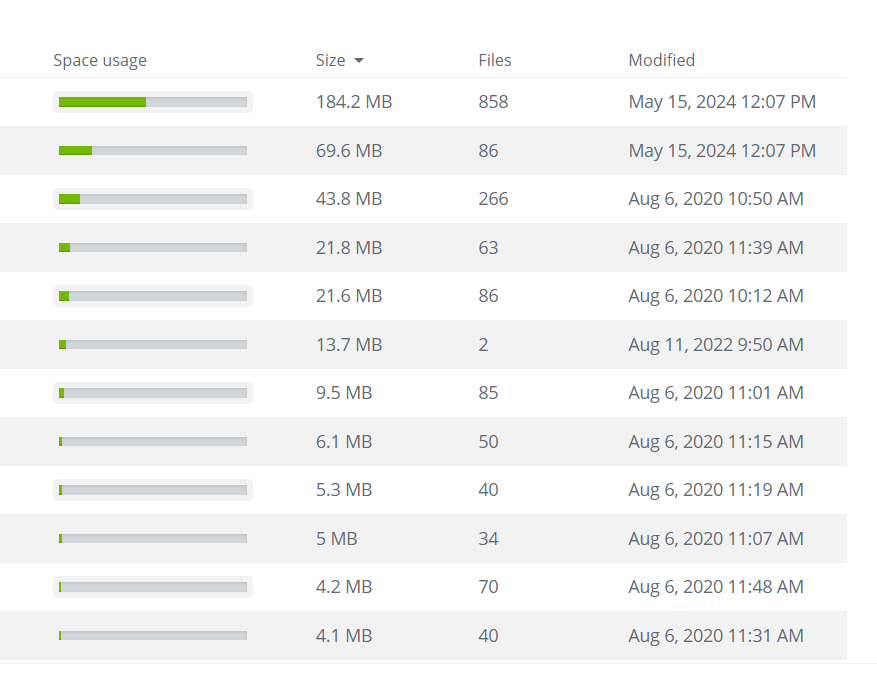
The analysis reports the total storage used and the number of files within each folder. This makes it easy to see which folders are taking up the most space or contain the most files.
Learn more about the Space Usage Tool.
12. Choose List view for a shared folder link
When someone opens a folder you shared through Send Link, Koofr normally chooses the display automatically. A folder made up mostly of photographs or videos opens in Tile view; other content opens in List view.
Follow the steps to force a shared folder to open in List view:
- Open the Send Link sharing window.
- Select View link in the upper-right corner to get the full shared URL.
- Add ?view=list to the end of that URL.
- Send the customised full URL to the recipient.
https://app.koofr.net/links/your-link?view=list
Note: This shortcut does not work with a shortened link k00.fr/..., and the parameter must be added separately to every link you want to customise. Without it, Koofr keeps choosing the view automatically from the folder’s content.
More info on List and Tile views for Send Link sharing links.
From everyday storage to a smarter workflow
Across both parts of this series, we’ve covered 12 Koofr features that are easy to miss. Some of these might save you a few clicks, while others may show you something you didn’t know Koofr could do. Try the ones that fit the way you use Koofr and keep the rest in mind for when you need them.
Koofr. Work smarter, not harder.
For more tips and tricks, read Koofr hidden tips and tricks: Part 1
Ready to put these tips into practice? Create Koofr account, or share this two-part guide with a friend or colleague who could use a faster way to work with their files.
Want to talk to us? Join our growing Reddit community!